Vet Shopping Extensions Fast: 6 Checks to Stop Data Harvesting
October 2, 2026

Vet Shopping Extensions Fast: 6 Checks to Stop Data Harvesting
Yes, shopping extensions can be useful, but many carry real privacy risks unless you vet them carefully and limit how many you run. A Georgia Tech study found many browser extensions collect user data and some send sensitive page content to outside servers. The safe approach: check permissions before installing, read the privacy policy, and keep only the extensions you actually use.
TL;DR:
- Over 3,000 browser extensions automatically collect user data, and more than 200 extract sensitive webpage content to upload externally, risking privacy breaches.
- Many extensions request broad permissions, such as host access and scripting, which significantly enlarge their ability to track or control browsing.
- A regular vetting routine, including checking publisher credibility, permissions, privacy policies, and recent updates, reduces the risk of malicious extensions.
- Suspect signs include sudden increases in ads, unexpected permission requests, redirects, and performance issues, necessitating immediate removal.
- Using a standalone price comparison tool that does not require ongoing permissions offers a safer alternative for avoiding extension-related risks.
Table of Contents
- How shopping extensions actually work
- The real risks: data collection, resale, and hijacked updates
- A pre-install checklist for vetting any shopping extension
- Keeping extensions useful without the exposure
- What the research says about extension risk
- Signs a shopping extension may already be compromised
- Beyond permissions: other signs of malicious behavior
- How shopping extensions affect device performance and security
- When I use shopping extensions, and when I skip them
- An extension-free way to compare prices and track deals
- FAQ
- Sources
How shopping extensions actually work
A shopping extension gets its power from a few technical pieces built into your browser. A content script runs inside the webpage you’re viewing, which lets the extension read prices, inject coupon codes, or highlight deals directly on the page. A background process, called a service worker in newer extensions, runs separately and handles tasks like checking for price drops even when you’re not looking at that tab.

The permissions an extension requests determine how far this reach extends. Host permissions let an extension read and alter specific websites. Scripting permissions let it inject code into pages. ActiveTab gives temporary access to whatever tab is open when you click the extension icon. Coupon finders need to scan checkout pages for promo fields. Price trackers need to scrape listing pages repeatedly. Both require reading whatever is on the screen, including form inputs, which is why a shopping extension can technically see far more than just prices.
The real risks: data collection, resale, and hijacked updates
The scale of the problem is larger than most shoppers assume. A Georgia Tech study analyzed more than 100,000 functional extensions and found over 3,000 automatically collect user-specific data, while more than 200 extract sensitive information straight from webpages and upload it to external servers, affecting tens of millions of people.
Thousands of browser extensions collect user data, and hundreds exfiltrate sensitive content from webpages, according to a Georgia Tech analysis. That means a sizable share of extensions on the market are, in effect, built to harvest information rather than simply help you shop.
Some of this is business model, not malice. Many free extensions make money by profiling browsing habits and selling that data, a practice that’s sometimes legal as long as it’s disclosed in a privacy policy few people read. A separate concern is the developer account itself. If a developer’s login is compromised, or if a popular extension is sold to a new owner, a routine update can quietly add tracking or data collection that wasn’t there when you first installed it. Chrome and other browsers auto-update extensions by default, so a tool you vetted carefully six months ago may not be the same tool running today.
For shoppers, the downstream effects show up as more aggressive retargeted ads, browsing history tied to your identity, and in worse cases, credentials or payment details exposed through poorly secured extension code.
A pre-install checklist for vetting any shopping extension
Before adding any shopping extension, run through a short checklist. It takes a few minutes and catches most of the obvious red flags.
- Identify the publisher. Look for a named company with a real website, not just a generic developer account.
- Read the requested permissions. Reject anything asking for broad host access, scripting, or activeTab if the extension’s stated function doesn’t obviously require it.
- Open the privacy policy and search for terms like “sell,” “share,” or “third party.” If there’s no policy at all, treat that as a serious warning sign.
- Check the last update date. A tool that hasn’t been updated in years may be abandoned and unpatched, while a tool updated too frequently with vague changelogs deserves a second look.
- Scan recent reviews for complaints that started after a specific update, which often signal a developer sold the extension or pushed a change that added tracking.
- Search the extension’s name alongside terms like “security” or “data leak” to check for past incidents or write-ups on sites like GitHub.
Store listings showing high install counts and consistent ratings are a reasonable starting signal, but they aren’t proof of safety on their own, according to the Discovery Hub & Shopify Furniture Widget guide on store vetting and verified badges. Plenty of extensions with millions of installs have still been flagged for quietly collecting more than they disclose.
Keeping extensions useful without the exposure
Vetting an extension once isn’t enough. Safe use is an ongoing habit, not a one-time decision.
- Limit yourself to a handful of extensions and remove any you haven’t opened in the last month.
- Use a separate browser profile for shopping, keeping banking, email, and work logins in a different profile entirely.
- Disable extensions on sensitive sites, or choose tools that request optional, site-specific permissions instead of blanket access.
- Keep your browser and extensions updated, since security patches often close holes that are already being exploited.
- Audit your extension list every few months and ask whether each one still earns its permissions.
Pro Tip: Open your browser’s extension settings and check “site access” for each one; switch anything set to “on all sites” to “on click” if the option exists.
Shoppers comfortable with browser internals can go further by watching the Network tab in developer tools for unexpected outbound requests while an extension is active, which can reveal data leaving the page that has nothing to do with showing you a discount.
What the research says about extension risk
The clearest signal is scale. The Georgia Tech researchers treated thousands of extensions as data collectors by default, not the exception, which is the opposite of how most people think about the tools sitting in their toolbar. LayerX Security’s research adds a related point: a large share of extensions in official stores don’t publish a privacy policy at all, and some that do explicitly reserve the right to sell browsing data.
Platform protections like manifest v3 and store-side scanning reduce risk but don’t eliminate it, according to Google’s own security guidance. Chrome’s scanning and review process catches a portion of bad actors before publication, but updates pushed after approval aren’t guaranteed the same scrutiny.
The practical takeaway: assume some level of data collection from any extension you install, minimize the permissions you grant, and consider skipping extensions entirely for tasks that have a browser-free alternative.
Signs a shopping extension may already be compromised
A few patterns suggest an extension that was safe at install time has since changed for the worse. Watch for a sudden spike in ads or pop-ups that weren’t there before, especially ones unrelated to the sites you’re browsing. New permission requests appearing out of nowhere, often bundled into a routine update notice, are another signal worth stopping to read rather than clicking through.

Redirects to unfamiliar coupon or shopping sites, a browser that feels noticeably slower only when the extension is active, or a homepage and default search engine that changed without your input are all common symptoms. So is a review section that shifts tone abruptly, with a wave of one-star complaints appearing right after a version update.
If you notice any of these, the safest move is to disable the extension immediately, check its permissions again, and remove it if anything looks different from what you originally approved. Reinstalling fresh after clearing browser data is a reasonable next step if you still want the tool and the publisher has addressed the issue publicly.
Beyond permissions: other signs of malicious behavior
Permissions tell you what an extension is allowed to do, not what it’s actually doing. A few behavioral clues go further. Unusual network activity, visible through your browser’s developer tools, can show data being sent to domains that have nothing to do with the retailer you’re shopping on. A background process that keeps running and consuming resources even when no shopping tab is open is another flag, since a well-built coupon or price tool has little reason to work constantly in the background.
Extensions that request access to clipboard contents, keyboard input, or other browser tabs unrelated to shopping are overreaching for their stated purpose. The same goes for an extension that suddenly asks to run on all sites after previously working only on retailer pages, since that kind of scope expansion often follows an account compromise or an ownership change. None of these signs require advanced technical skill to spot, just a willingness to look at what’s happening instead of trusting the icon in your toolbar.
How shopping extensions affect device performance and security
Every extension running in your browser consumes memory and processing power, and shopping tools that constantly poll prices or scan pages tend to be heavier than simple utilities. A browser loaded with a dozen extensions, several of them shopping-related, often becomes sluggish to open, slow to load pages, and quicker to drain a laptop battery.
The security cost compounds the performance cost. Each extension is a separate piece of code with its own access to your browsing, and each one is a potential point of failure if the developer’s systems are breached or the code has a vulnerability. Chrome’s developer documentation recommends granting only the minimum permissions an extension needs, precisely because every added permission widens the attack surface available to a bug or a bad actor. Running fewer, more trustworthy extensions is both the faster and the safer choice, which is one of the few places where convenience and security point in the same direction.
When I use shopping extensions, and when I skip them
I’ll install a shopping extension when the publisher is identifiable, the privacy policy is specific about what it won’t sell, and the permissions match the stated function exactly. I skip them entirely on any device tied to work accounts or financial logins, where the convenience isn’t worth the exposure. My maintenance routine is simple: every few months, I open the extension list, ask whether I’ve actually used each one recently, and remove anything that can’t answer yes.
— Timothy
An extension-free way to compare prices and track deals
If you’d rather skip the permissions question altogether, AI Price Search compares prices across verified retailers and factory-direct sources without living inside your browser as an extension. 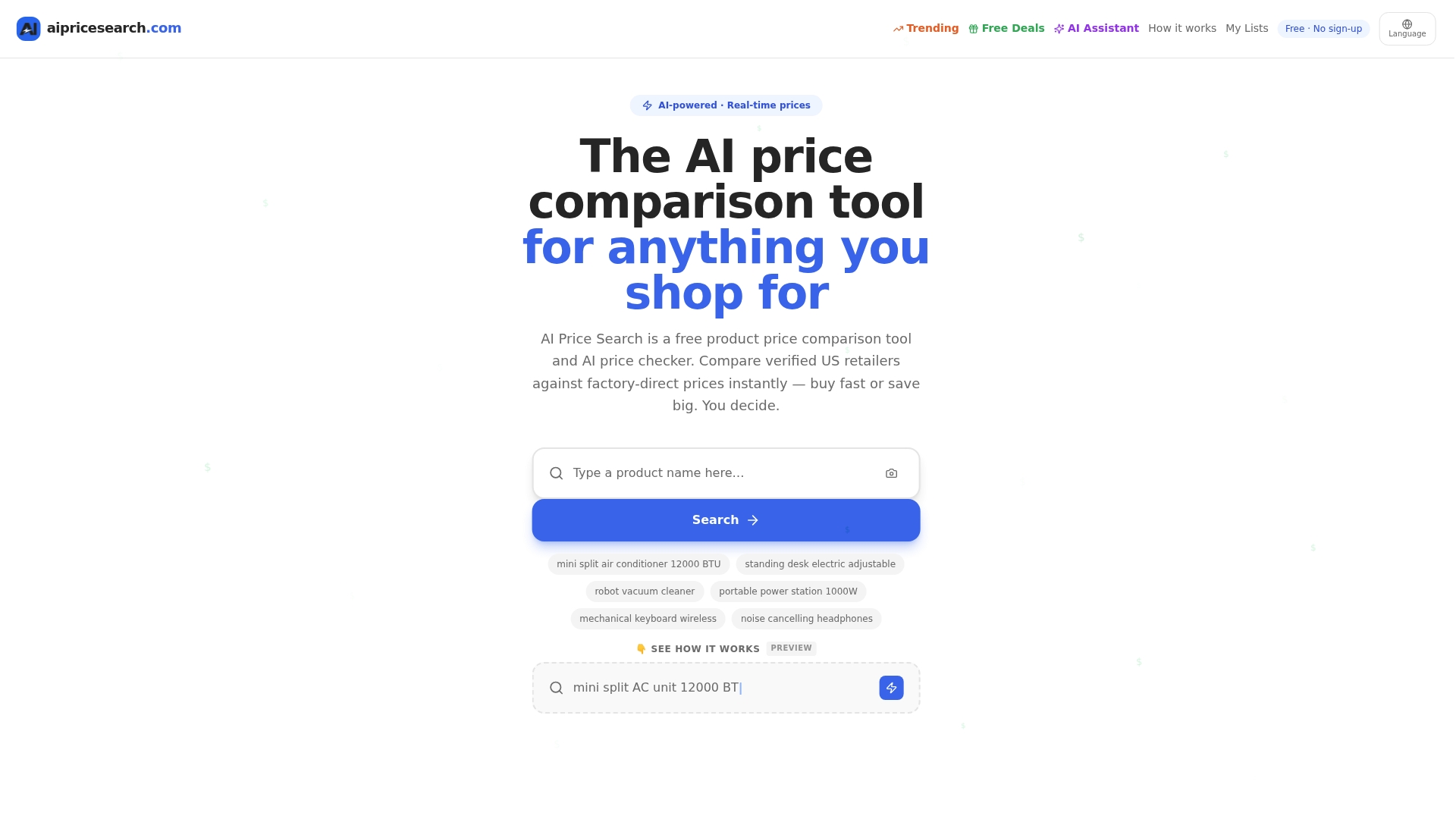
You search a product once, and the AI shopping assistant surfaces pricing and seller reliability, while the dropship detector flags listings padded with hidden markups. Because it runs as a standalone tool rather than a background process watching every page you visit, it does not have the continuous permissions typical of browser extensions. Shoppers who want the savings without adding another always-on extension can start at Aipricesearch.
FAQ
How do I know if an extension is safe?
Check who published it, read the exact permissions it requests, and open its privacy policy before installing. If the permissions go far beyond what the extension claims to do, or there’s no privacy policy at all, treat that as a warning sign rather than installing and hoping.
Is the Capital One Shopping extension safe to use?
Specific safety assessments of individual extensions change over time as they’re updated, so the general rule applies here too: review its current permissions and privacy policy directly in your browser’s extension store before trusting it with your shopping activity. No single extension, including well-known financial brand tools, is automatically exempt from the vetting steps covered above.
Which shopping extension is best?
There’s no single best option, since the right choice depends on what you’re willing to grant access to and how much you shop online. Shoppers who want price comparison without installing anything in their browser can use a standalone tool like AI Price Search instead.
Are browser add-ons safe?
Browser add-ons vary widely. Many are safe when built by identifiable developers with minimal permissions, but Georgia Tech researchers found thousands collect user data and hundreds send sensitive information to outside servers, so safety depends on checking each one individually rather than assuming store availability means it’s vetted.
What permissions should worry me most in a shopping extension?
Broad host permissions covering every website, along with scripting access, give an extension far more reach than most coupon or price tools actually need. If a shopping extension requests these without a clear explanation tied to its function, that mismatch is worth questioning before you install it.
Sources
- Study finds thousands of browser extensions compromise user data — Georgia Tech
- Staying safe with Chrome extensions — Google Security Blog